
Help and Support for Healthfinder Users
Structured, proactive health insights for healthcare providers
Here you will find information to help you get up and running with Healthfinder quickly.
Any questions or issues please contact support@elevyohealth.com
Healthfinder captures health signals and provides structured health insights for care providers that can be tracked over time. It helps you see what can easily be missed or fragmented and can help to guide your care, or simply understand more deeply your patients and what might be influencing how they feel.
Healthfinder does not diagnose or make recommendations but is designed to seemlessly support the excellent care you provide.
What do you need?
Need more support?
Request help, ask a question or book a live walk through
Set up new organisation (for clinic or company lead)

Getting the most out of Healthfinder
Healthfinder is a tool designed to smoothly slot into your existing services to add structured soft data health insights. Clients input information via a secure link before you meet, with just 5-7 minutes of your session time needed to complete remaining questions. You then get results immediately that can guide your care, or simply benchmark important health signals you can track over time.
Users love Healthfinder. It captures valuable information to help you understand more of what is going on with your clients and what might be influencing that. With the ability to monitor progress and stay connected between sessions, Healthfinder revolutionalises how we harness and use the important details in soft data that often get ignored or missed. We think some of the most important details are in the signals the Healthfinder gathers for you.
Structured insights mostly gathered before session itself
Embeds easily into existing way of working
Increased revenue opportunities
Monitor progress or response to treatment without taking session time.
Outcome measures/KPIs for your treatments
How should I use Healthfinder in my organisation? (coming soon)
Select the type of organisation you are to see how users commonly use Healthfinder. You can also find some inspiration in the Clinic Section of this help page.
Please note that Healthfinder is not a diagnostic tool and does not replace medical diagnostics or assessments. It is designed to add an additional layer of insights around health, health signals and what may be influencing those health signals in order for care providers to deliver enhanced care.
How to reset your password
Click on the below to read more
Click to see quick set up guide and ensure you are covering all the necessary steps to get up and running quickly and smoothly.
New User Welcome!
A word on Logging in to Healthfinder
Your log in is linked to your email address, not the clinic or organisation. This means you can use the same log in at the URL of any organisation (clinic or company) that you have been invited to join on that email address.
For example Janet works at two clinics “Nut Clinic” and “Sports Clinic”. She has been invited to each of these clinics both on “janet@miles.com” email. She was first invited by Nut Clinic and set up password “xxyyzz” on that email to log in to Nut Clinic (at nut.elevyo-healthfinder.app). She then gets invited to join Sports Clinic. On that invite she simply logs in at sport.elevyo-healthfinder.app with password “xxyyzz”.
If she had been invited on a different email address in Sport clinic then she sets up a different password on that email address.
Click here to read how to reset your password
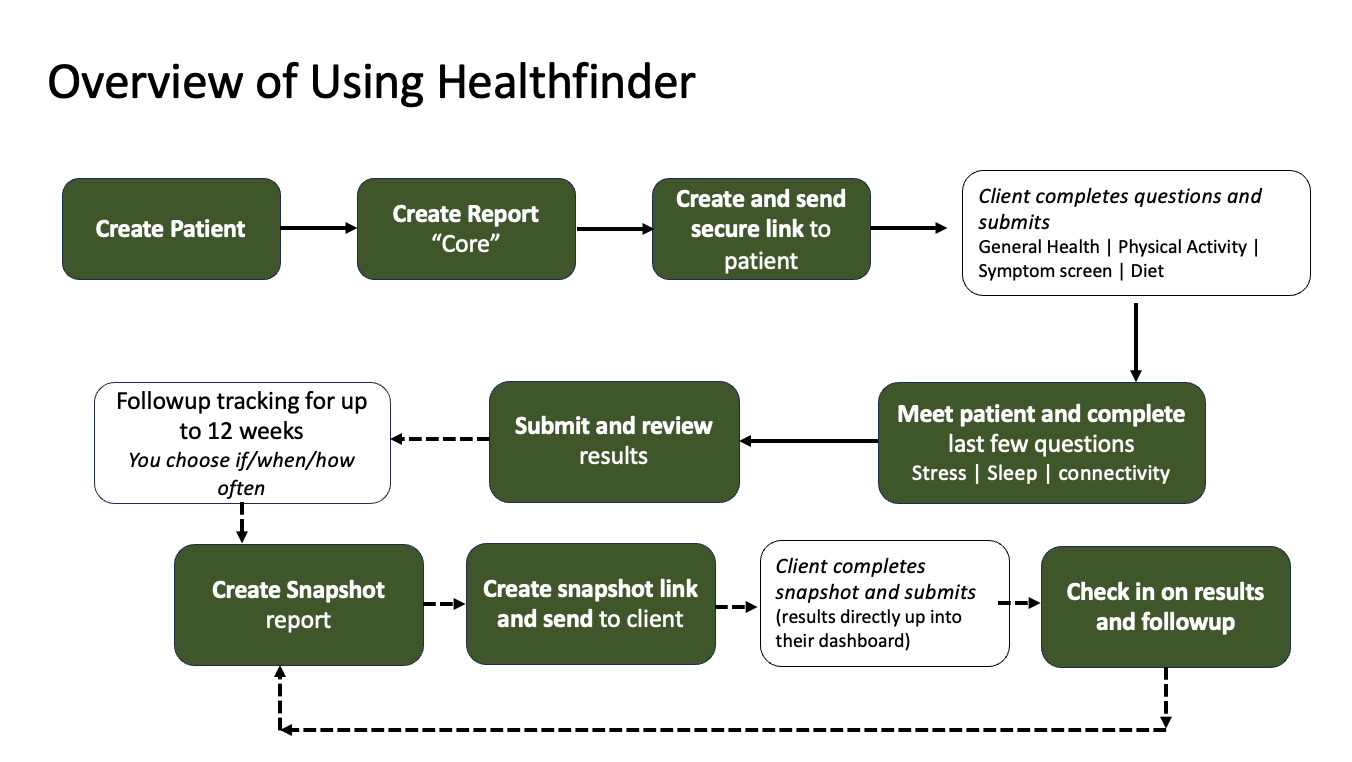
Overview of Healthfinder Process (click to enlarge)
Running Healthfinder Reports
Types of report: Core vs Snapshot
There are two types of report available in Healthfinder:
“Core”: this is the main Healthfinder, capturing all health signals for a full report. You can create as many Healthfinder reports as you like for a patient, this is up to your needs. There is a small fee for each Core Healthfinder report submitted.
“Snapshot”: this is the tracking report that you can send to your clients as often as you like for up to 12 weeks after a Core Healthfinder has been completed. It gathers key health signals that you can track over time and see progress, use to check in with your patients. You cannot create a snapshot report unless a completed Healthfinder has been done in the last 12 weeks. It is up to you and your client if and how often you use the snapshots report. You do not get charged for snapshot reports.
Click to enlarge an overview of the Healthfinder “Flow”
Detailed Steps to Running a Healthfinder Report
Step 1: CREATE PATIENT
Go to Patient tab on left side menu. Click on “+ New Patient” button. Complete patient details (tip: email is important if you want to send question links direct from Healthfinder). Click “Create Patient” to save. You will now see patient in the list of patients in the patient tab.
Step 2: CREATE REPORT
Click image below to enlarge overview.
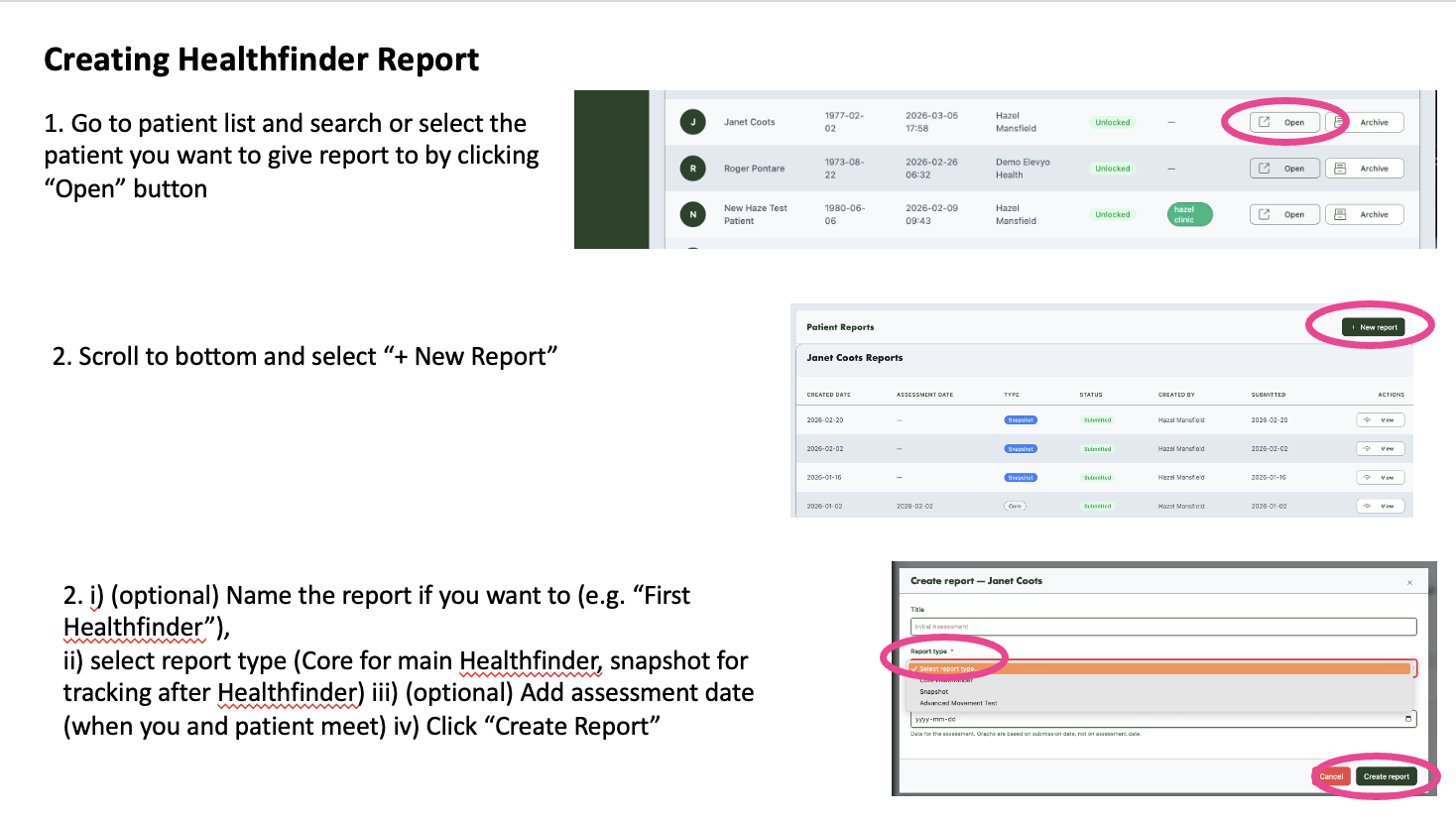
Go to patient list and search or select the patient you want to give report to by clicking “open” button
Scroll to button and select “+ New Report”
i) (optional) Name the report if you want to (e.g. “First Healthfinder”),
ii) select report type (Core for main Healthfinder, snapshot for tracking after Healthfinder) iii) (optional) Add assessment date (when you and patient meet) iv) Click “Create Report”
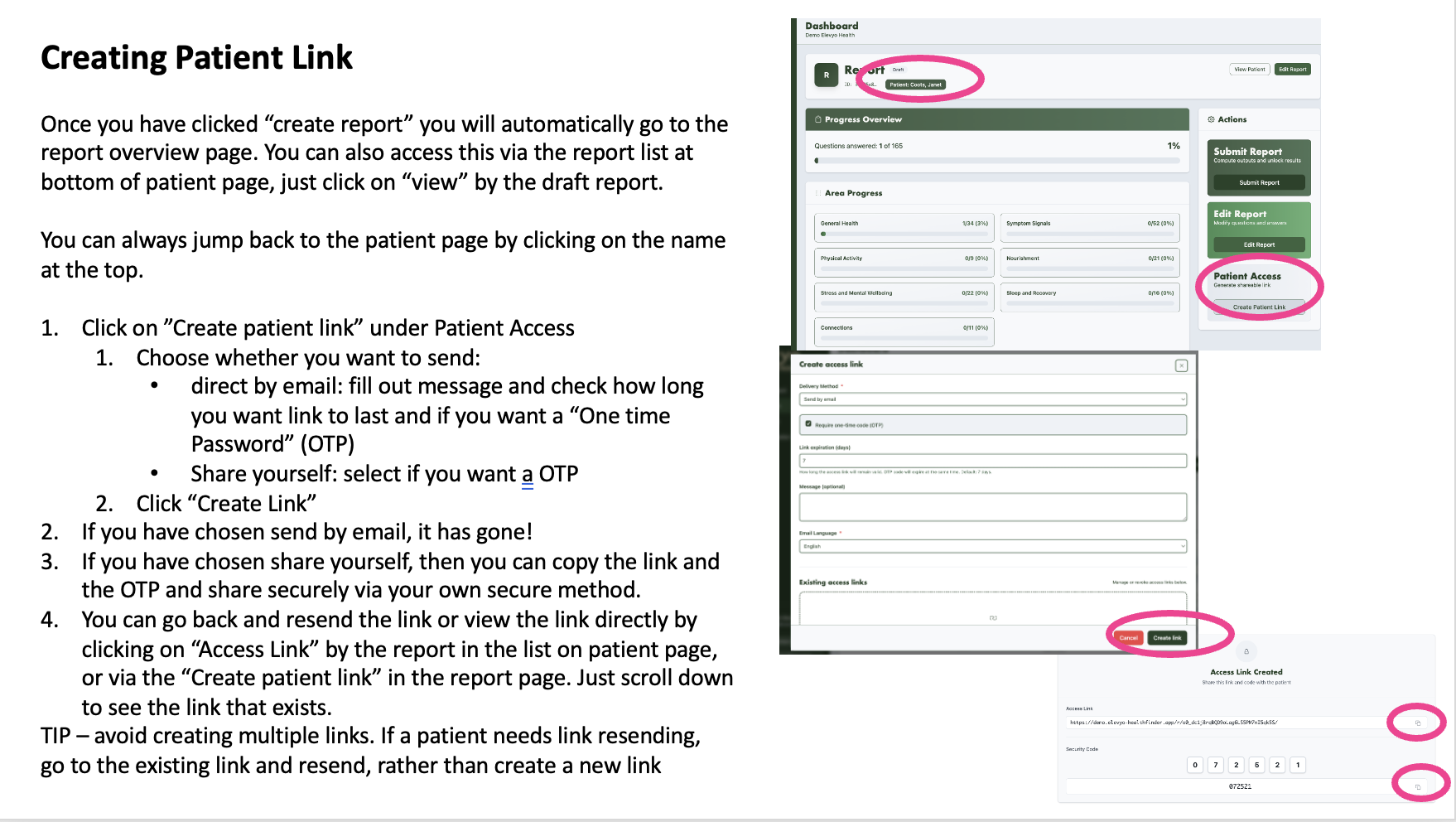
Step 3: SEND LINK
The patient/client will complete via a secure link some questions that cover four out of seven of the areas.
Step 4: SESSION FINISH QUESTIONS
When you meet the patient/client, either in-person or online, you will complete the remaining three (out of seven total) sections.
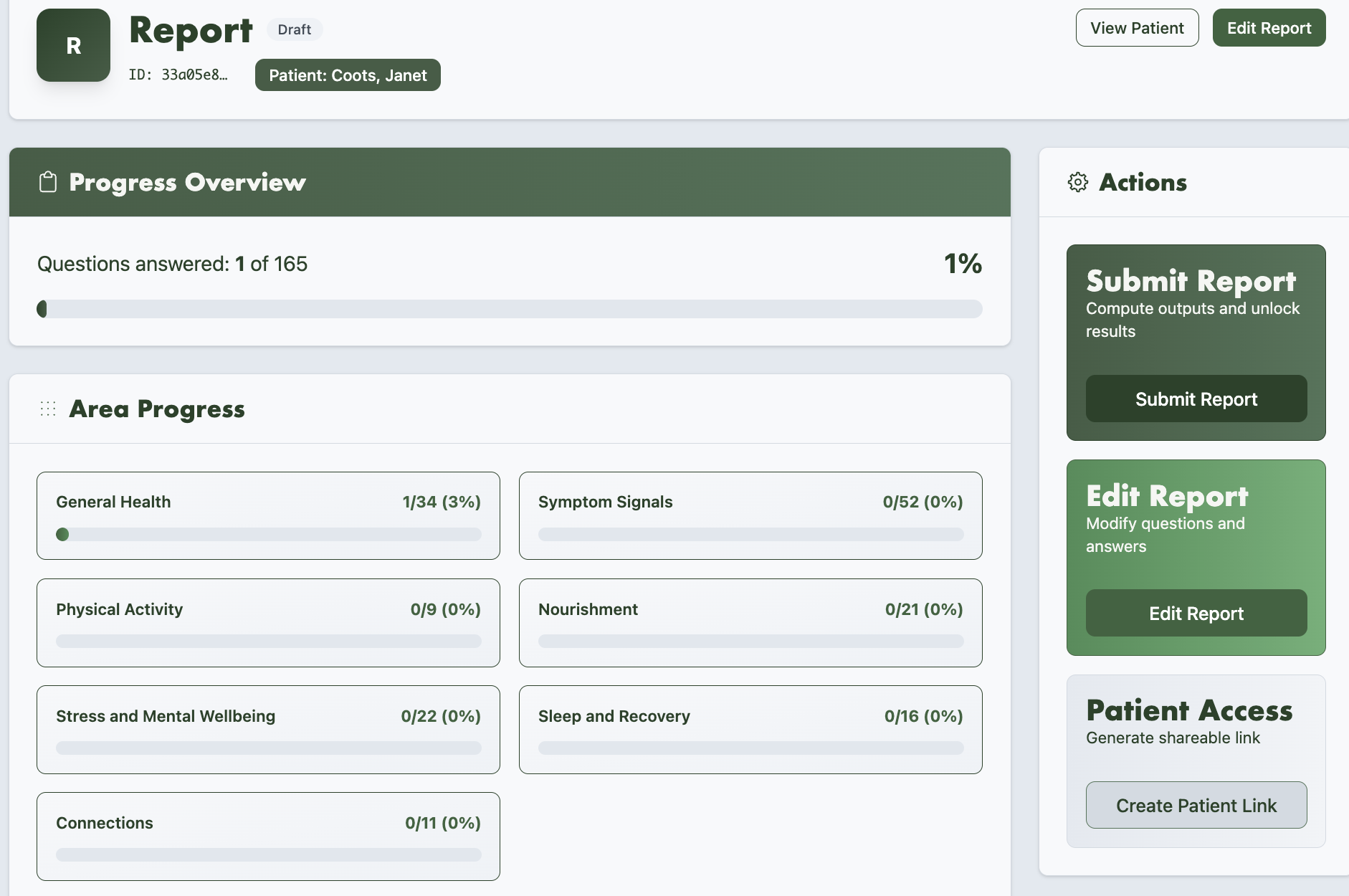
Go to report page (select from list at bottom of patient page) and click “Edit Report” then click on the remaining sections to complete the questions. Click “Save Draft” at the end of each section the “Back to Report Overview” to move between sections.
Step 5: SUBMIT AND REVIEW RESULTS
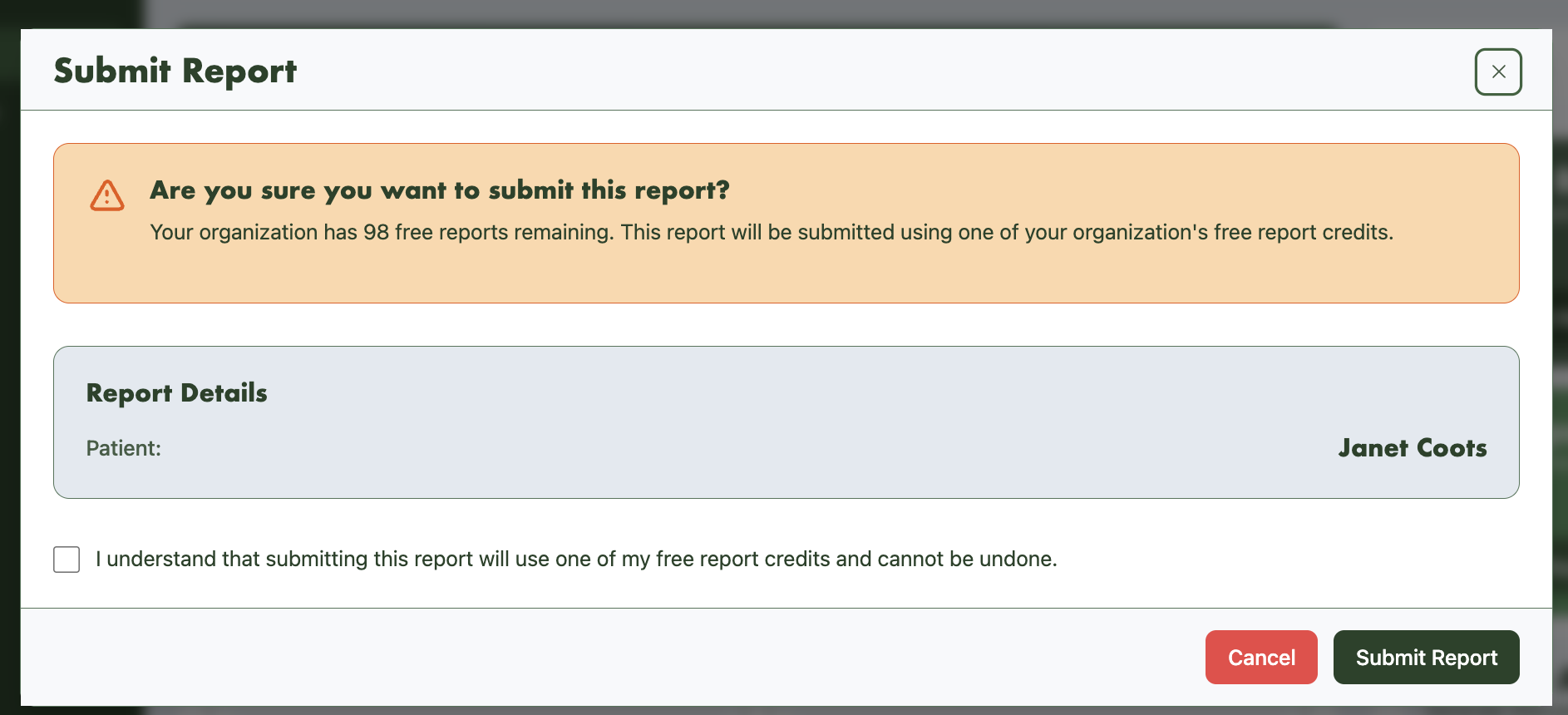
Once you have completed all sections, go “Back to Report Overview” and click Submit Report. the following pop up will show. This is important as this is where the charge is triggered. Once you are sure you want to submit and see results, check the box and click “Submit Report”
Step 6: TRACK OVER TIME (OPTIONAL)
This is the Snapshot report type and only possible to create within 12 weeks of completing a Healthfinder. You do not have to use this feature but it is there to help you track progress or changes over time.
Follow the same steps 2-3 to create a “Snapshot” report and link to send to the patient/client. Results are then submitted once they complete the questions and you can see progress on the patient dashboard or select the relevant snapshot in the report list to view more details.
You can send as many snapshots as you like and you decide how often and when as this is often down to needs and patient/client preference. These are easily shared directly by email to save time, just include a short check in message.
Each new snapshot needs a new link so repeat the above process for each snapshot you send.
TIP: most users go for a snapshot minimum every week since health signal quality is lost if sending more that one within the same week.
Understanding Healthfinder Reports
How the reports work
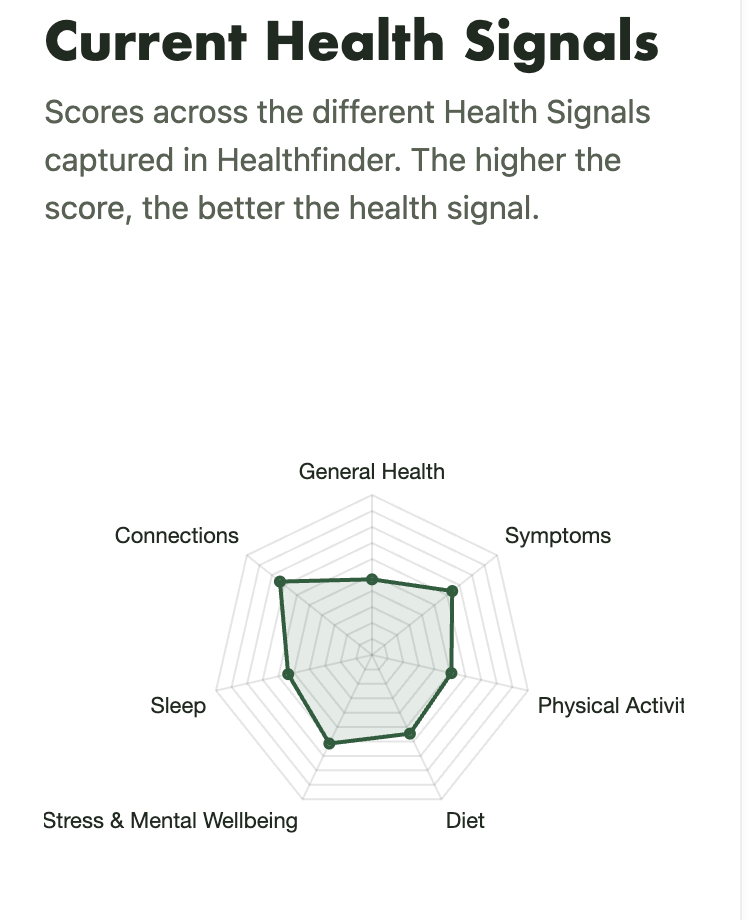
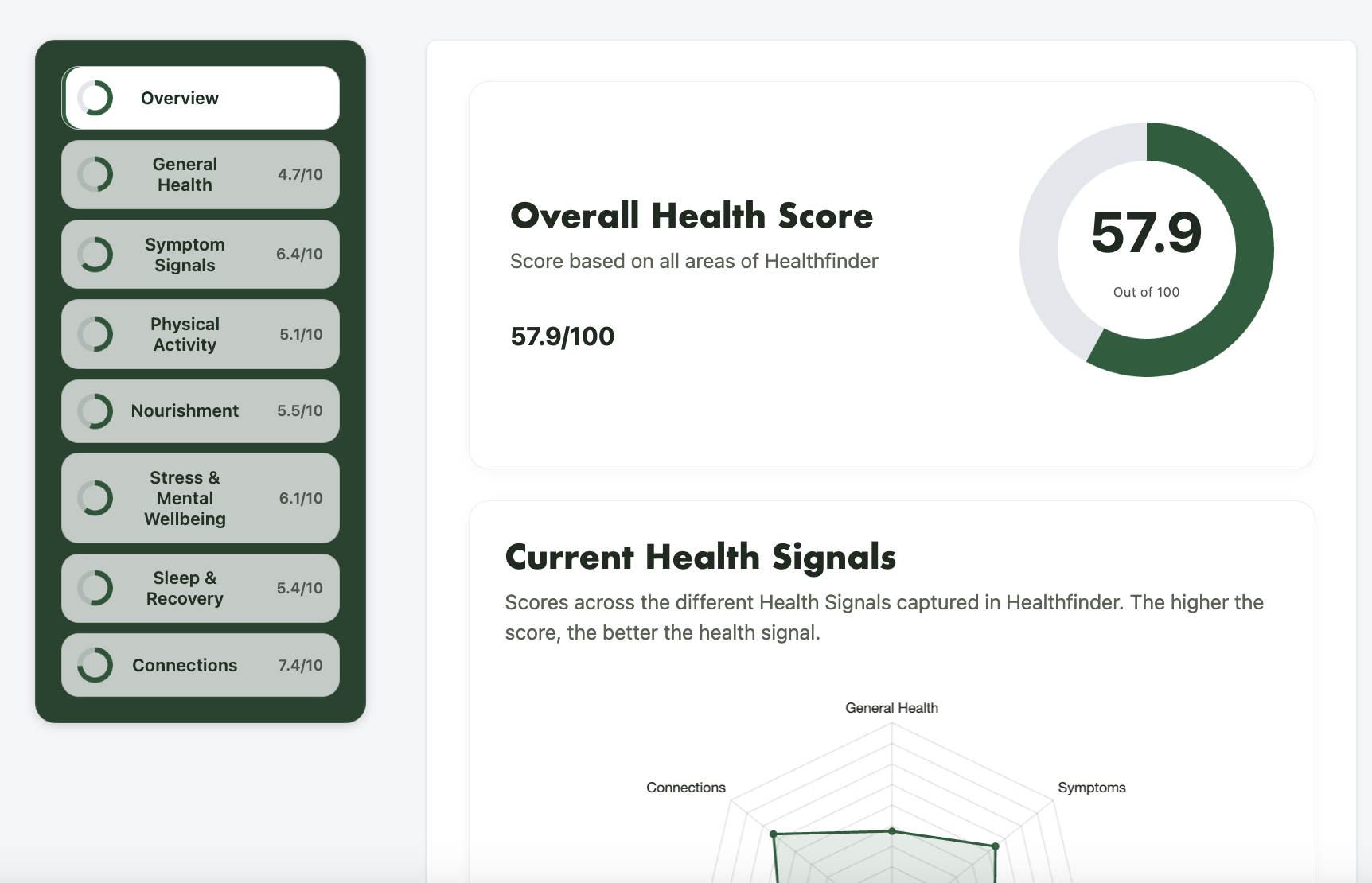
Reports are designed to give insights from a quick overview of the results to allowing you easily to see the detail. The report has an overview which shows the overall Healthfinder score. This is a score based on the health signals across the whole report. The higher the number, the higher or better the health signals. It also shows “Current Health Signals” where you can see which type of health signals are showing more or less. The higher the number the better the health signals in this area. For example on the right there is a slightly lower health signal in diet compared to connections so this might direct where you want to explore in detail in the rest of the report. “Opportunity for Supporting Health” shows where the patient/client feels they want or are able to make changes. This is important to help you know where to focus your care or conversation about next steps.
You can then click on the different sections on the left to explore each area of health signal in more detail.
Dashboard
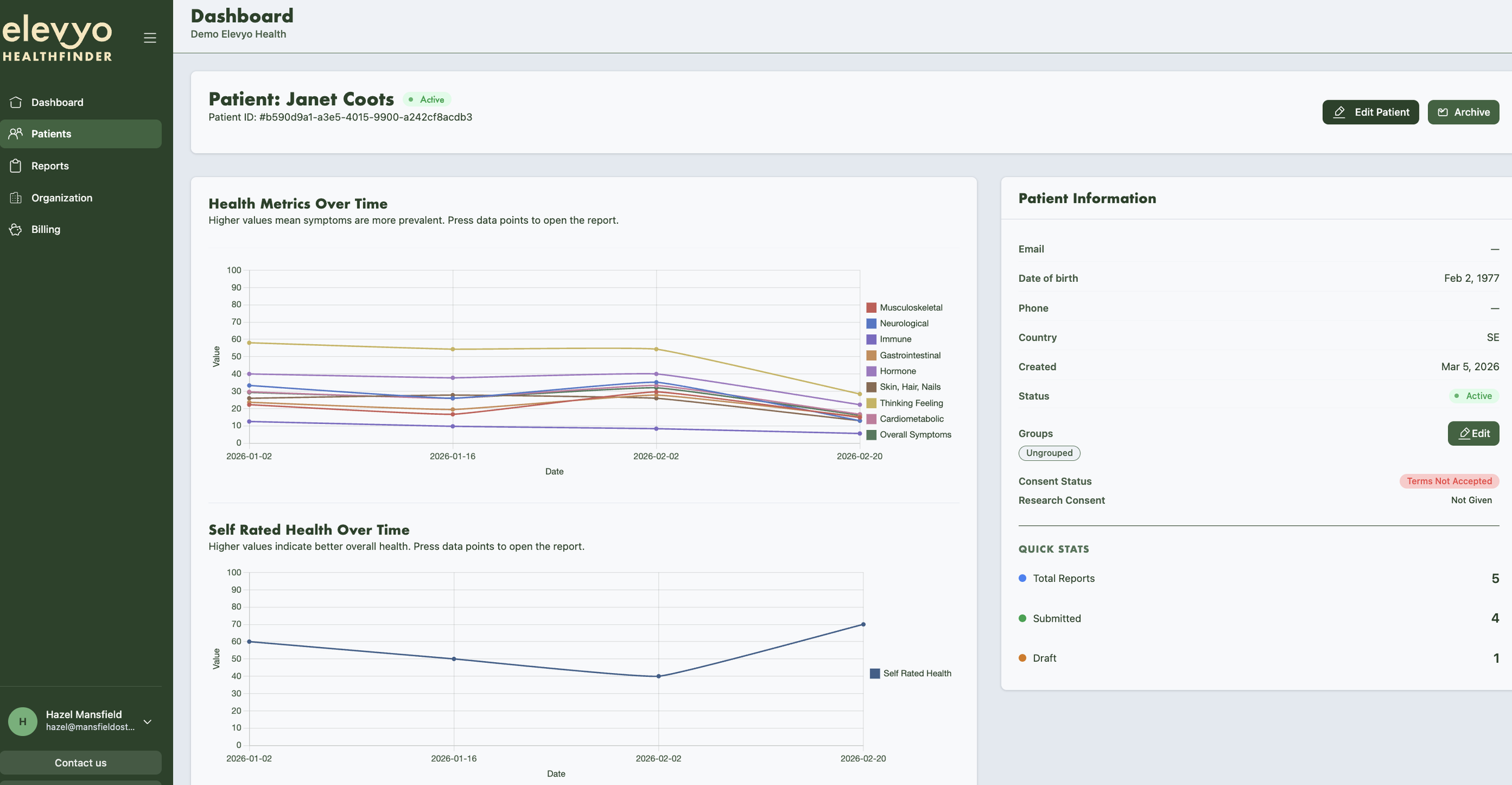
To access the dashboard and health signal tracking over time, select the patient you want (or click the patient name directly from the report). Here you can see symptom signals over time, self-rated health over time. You can also see patient information, and scroll down to see all report history. You will also notice an area on the dashboard for you to make notes about any advice you gave, as it can be helpful to note that directly in Healthfinder even if it is not a journal system. Lastly, you will see the things that matter to the patient regarding their health, this is something good to remember when framing the conversation about results or recommendations you might give.
Clinic Inspiration and Clinic Room
Healthfinder Examples (coming soon)
Case Examples (3 x videos) 3 x one page review
Clinic Rooms
Join one of our Clinic Rooms! Enjoy, discuss, share, ask about a topic related to proactive care, and lifestyle medicine. Feel free to bring a question or short case situation to discuss!Click LINK to join directly on the following dates:
10:00 Monday 16th March 2026
17:00 Wednesday 25th March 2026
12:00 Tuesday 31st March 2026
Feedback Links
Use these to submit your own feedback, at any time, or to share with your patients.
If you want to embed the link for patient feedback into your emails, use:
https://docs.google.com/forms/d/e/1FAIpQLSfASY1aajb52AA1iCLNdfl1ufDSz77WFmf9cOnoLbeYh_kVAw/viewform?pli=1